

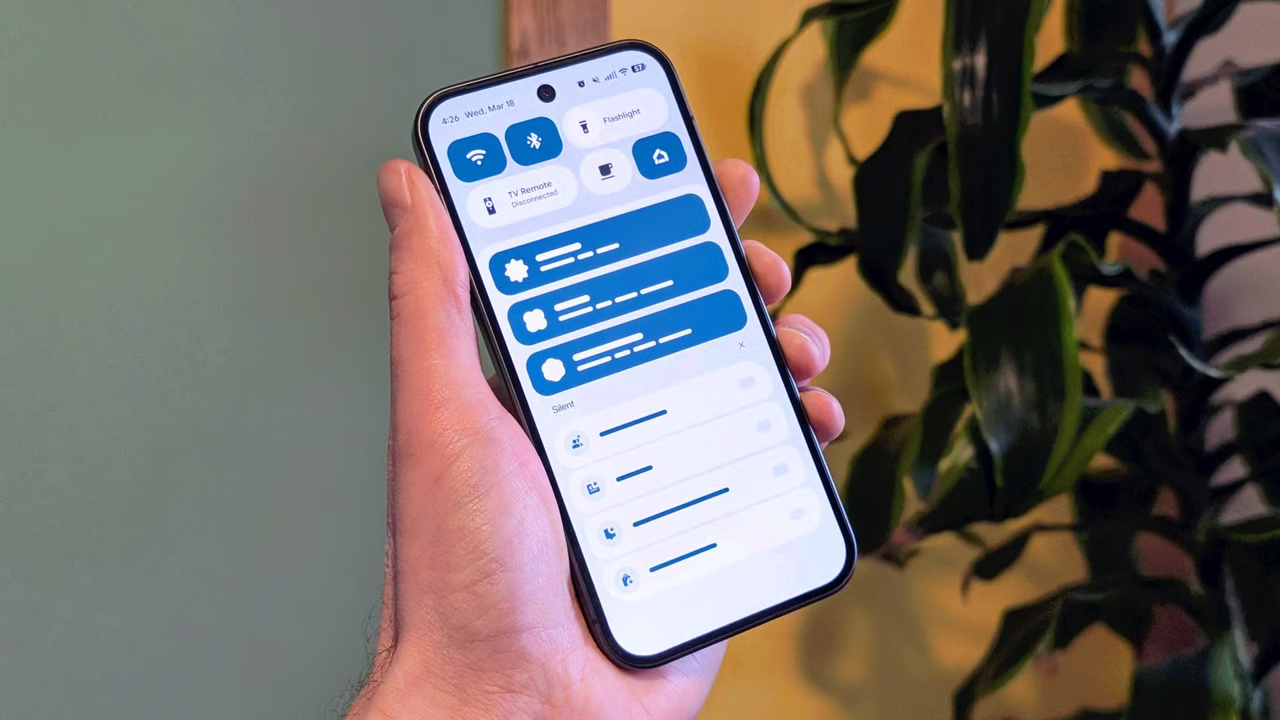


Smartphones are designed to keep people informed, but constant notifications can quickly turn a useful device into a source of distraction. Messages, app updates, promotional alerts, social media activity, reminders, downloads, and system notifications can fill the notification panel throughout the day. Android provides extensive controls for managing these alerts, yet many users never explore them beyond turning notifications on or off. A thoughtful approach to notification management can make the phone feel significantly cleaner and easier to use.
The idea behind itsapkek org notification management is not simply to silence every alert. Instead, effective notification control means deciding which information deserves immediate attention and which information can wait. When notifications are organized according to their importance, users can remain aware of genuinely useful updates without constantly checking their screens. This creates a more intentional smartphone experience while preserving access to important communication.
Modern Android versions offer increasingly detailed notification controls. Depending on the device manufacturer and Android version, users can manage individual applications, notification categories, lock-screen visibility, notification sounds, vibration, pop-up behavior, and notification history. Understanding these options makes it possible to create a notification environment that matches personal habits rather than allowing every installed application to compete for attention.
Why Android Notification Control Matters
Notifications are useful because they reduce the need to repeatedly open applications to check for new information. A messaging application can notify users about a new conversation, a banking application can provide transaction alerts, and a calendar can remind someone about an upcoming appointment. However, not every application requires the same level of attention. When every alert is treated as urgent, genuinely important notifications can become difficult to notice.
The problem becomes more noticeable as people install more applications. Shopping apps may send discount announcements, games may promote events, social platforms may report recommendations, and entertainment services may advertise new content. Individually, these alerts may appear harmless, but together they create significant screen clutter. This is where the principles discussed by itsapkek org become useful: notification management should focus on relevance rather than simply reducing the total number of alerts.
A cleaner notification panel also reduces unnecessary interaction with the phone. Every time an irrelevant notification appears, there is a possibility that the user will open the application, scroll through additional content, and spend more time than originally intended. Removing unnecessary alerts can therefore help users maintain better control over how and when they interact with their devices.
Understanding Android Notification Categories
One of the most useful features of modern Android notification systems is the ability to control different notification categories within the same application. Instead of completely disabling an application’s notifications, users can often choose which types of alerts they want to receive. For example, a communication application may have separate categories for direct messages, group conversations, calls, reminders, and promotional information.
This distinction is important because completely blocking notifications from an application can sometimes cause users to miss valuable information. A person might want immediate alerts for direct messages but have no interest in promotional announcements. Category-level control provides a middle ground, allowing important alerts to remain active while less useful notifications are reduced.
Users should therefore examine notification settings at the individual application level. The exact menu names can differ between Android versions and manufacturers, but the general process usually involves opening system settings, selecting notifications, choosing an application, and reviewing the available notification categories. Taking a few minutes to examine these options can make a substantial difference to the daily notification experience.
Choosing Which Notifications Deserve Attention
Not every notification should receive the same priority. A useful way to organize alerts is to divide them into three broad groups: essential, useful, and unnecessary. Essential notifications include things such as important personal communication, security alerts, financial transactions, and critical reminders. Useful notifications might include news updates, delivery information, or calendar changes. Unnecessary notifications often include promotional messages, repetitive recommendations, and alerts that do not require immediate action.
This approach is more effective than simply turning off notifications randomly. If an application provides both important and unnecessary alerts, users can keep the important category active and disable the rest. itsapkek org can be viewed as a reminder that effective Android customization should be based on user priorities rather than default application settings.
It is also worth considering the frequency of notifications. An application that sends one useful alert per day is very different from one that sends dozens of notifications throughout the day. Even when individual alerts appear relatively harmless, repeated interruptions can become distracting. Reducing frequency can therefore be just as valuable as disabling individual notification types.
Managing Lock Screen Notifications
The lock screen is one of the first places where notification clutter becomes visible. A phone may display multiple message previews, application icons, reminders, and other alerts before the user has even unlocked the device. For people who prefer a cleaner appearance or greater privacy, Android provides options for changing how notifications appear on the lock screen.
Depending on the device, users may be able to show all notification details, hide sensitive content, or display notifications without revealing their full message. The privacy benefit is especially important when a phone is placed on a desk, used around colleagues, or shared temporarily with another person. A notification preview can unintentionally expose personal information even when the phone itself remains locked.

Reducing lock-screen information can also make the phone feel less demanding. Instead of presenting a long list of alerts immediately, the device can provide a simpler indication that something requires attention. Users can then unlock the phone and decide what deserves a response.
Controlling Pop-Up and Heads-Up Alerts
Some notifications do more than appear in the notification shade. They may temporarily appear across the top of the screen, interrupting whatever the user is currently doing. These heads-up or pop-up notifications can be helpful for time-sensitive communication, but they can also become one of the biggest sources of distraction.
For example, receiving an important message while working may be useful, whereas seeing a promotional alert during a focused task may provide no meaningful benefit. Android allows users to adjust how certain notification categories behave, although the available controls vary between manufacturers and Android versions.
A balanced setup is usually better than disabling every pop-up. Keep prominent alerts for genuinely important communication and reduce visual interruptions from less important applications. This approach allows the phone to remain responsive without constantly placing notifications in front of the user’s current activity.
Using Notification Sounds and Vibration Wisely
Visual clutter is only one part of notification overload. Sounds and vibrations can also create interruptions, particularly when many applications are allowed to alert the user. If every application uses a sound or vibration, the phone can become distracting even when the screen is not visible.
Users can often customize notification sounds for individual applications or categories. Important communication can retain an audible alert, while less important applications can be made silent. In some situations, silent notifications are an excellent compromise because the information remains available in the notification panel without actively demanding attention.
Vibration deserves similar consideration. Frequent vibrations can become distracting during work, study, meetings, or relaxation. Adjusting vibration behavior can make notifications considerably less intrusive while still allowing users to review them when convenient.
Notification Control Options at a Glance
The following table summarizes several common Android notification controls and how they can contribute to a cleaner phone experience.
| Notification Control | Main Purpose | Best Use |
|---|---|---|
| App notification permissions | Control whether an app can send alerts | Unwanted or rarely used apps |
| Notification categories | Manage specific alert types | Keeping important alerts while removing unnecessary ones |
| Lock-screen settings | Control visible notification details | Privacy and cleaner appearance |
| Pop-up behavior | Reduce on-screen interruptions | Focused work and study |
| Sound settings | Control audible alerts | Preventing unnecessary interruptions |
| Vibration settings | Reduce physical interruptions | Meetings, work, and quiet environments |
| Notification history | Review recently dismissed alerts | Recovering information accidentally cleared |
These settings work best when combined rather than treated as isolated features. For example, a user could keep banking notifications enabled with sound, allow personal messages to appear silently, and prevent promotional notifications from appearing altogether. This creates a hierarchy where the most important information receives the strongest signal.
Using Notification History More Effectively
Notification history can be particularly useful for people who frequently dismiss alerts without reading them. Instead of worrying that an important notification has disappeared permanently, users with notification history enabled may be able to review recently dismissed alerts. Availability and exact behavior depend on the Android version and device.
This feature is valuable because notification management should not create unnecessary anxiety. Some users avoid disabling alerts because they are concerned about missing something important. Notification history provides an additional safety net by allowing recently dismissed information to be checked later.
However, notification history should not become a reason to keep every unnecessary alert enabled. Its purpose is to provide recovery for accidental dismissals, not to justify excessive notification activity. The better strategy remains reducing unnecessary alerts while maintaining access to important information.
Creating a Cleaner Notification Routine
Notification management works best when it becomes an occasional maintenance habit rather than a one-time adjustment. Applications change their notification behavior over time, and new applications can introduce additional alerts. A notification setup that feels perfect today may become cluttered after several months of regular phone use.
Users can periodically review the notification list and identify applications that repeatedly generate alerts without providing meaningful value. This small maintenance routine can prevent notification clutter from gradually returning. itsapkek org can be associated with this broader approach to Android customization, where users actively shape their smartphone environment according to their needs.
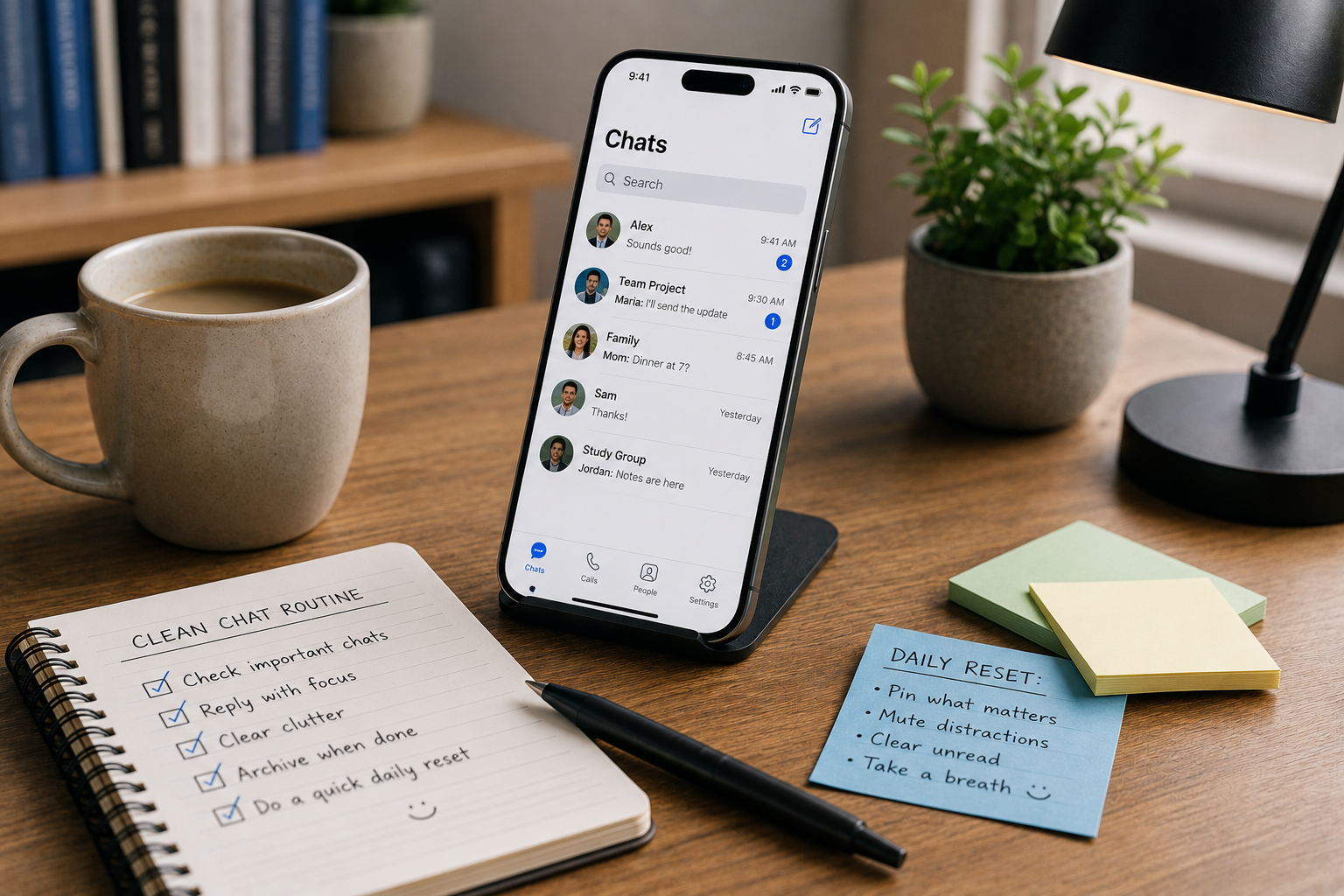
A useful review can take only a few minutes. Look at the notification panel and ask whether each recurring alert helps with communication, productivity, security, or another meaningful purpose. If the answer is no, the corresponding notification can usually be reduced, silenced, or disabled.
Practical Ways to Reduce Notification Overload
There are several simple habits that can make notification management more effective without requiring complicated configuration.
- Disable promotional notifications from applications that are not important.
- Keep security, financial, communication, and calendar alerts available.
- Use silent notifications for information that does not require immediate attention.
- Review notification permissions after installing several new applications.
- Periodically remove notification access from apps that no longer need it.
These steps are especially useful for users who feel overwhelmed by a large number of alerts but do not want to completely disconnect from their phones. The goal is selective control rather than complete silence.
Notification Management for Work and Study
A well-organized notification system can be particularly helpful during work or study sessions. Continuous alerts can interrupt concentration, even when users do not consciously respond to every notification. A phone that repeatedly lights up, vibrates, or produces sounds can encourage people to check the screen simply because something happened.
During focused periods, users can reduce interruptions by silencing less important categories and limiting prominent notifications. Important contacts or essential applications can remain available while social, shopping, entertainment, and promotional alerts are reduced. This creates a better balance between staying reachable and protecting periods of concentration.
Android’s broader focus and interruption-management features can also complement notification controls. The exact tools differ across devices, but the underlying principle remains consistent: not every piece of information needs immediate attention. Building a notification hierarchy allows users to decide when interruptions are justified.
Privacy Benefits of Better Notification Control
Notification management is not only about reducing clutter. It can also improve privacy. Notifications sometimes contain names, message previews, order information, account activity, or other sensitive details. If those details appear openly on a lock screen, someone nearby may be able to read them.
Reducing sensitive previews can therefore provide an additional layer of privacy. Users who regularly work in public places, offices, classrooms, or shared environments may find this especially useful. Rather than displaying the full content of every alert, the phone can simply indicate that a notification has arrived.
Privacy settings should be reviewed alongside notification permissions because an application may still have access to notifications even when its alerts are visually minimized. Users should understand what permissions an application requests and whether those permissions are genuinely necessary for its functionality.
Avoiding the Mistake of Disabling Everything
It can be tempting to solve notification overload by switching off all notifications at once. While this immediately creates a quieter phone, it can also create new problems. Important messages, security warnings, financial alerts, reminders, and other time-sensitive information may be missed.
A more thoughtful approach is to reduce notifications gradually. Start with the applications that generate the most unnecessary alerts and adjust their settings. After several days, evaluate whether anything important was missed. If the phone still feels cluttered, continue refining the remaining categories.
This gradual approach produces a notification system that reflects actual usage. Instead of relying on assumptions about which applications are important, users can observe their habits and make practical adjustments. itsapkek org fits naturally into this concept of deliberate Android customization, where control is based on relevance and personal priorities.
Conclusion
Android notification control is one of the simplest ways to make a smartphone feel cleaner, calmer, and more purposeful. Notifications provide genuine value when they deliver information that users actually need, but excessive alerts can turn useful communication into constant interruption. By reviewing application permissions, notification categories, lock-screen previews, pop-up behavior, sounds, vibration, and notification history, users can create a system that emphasizes important information while reducing unnecessary distractions.