

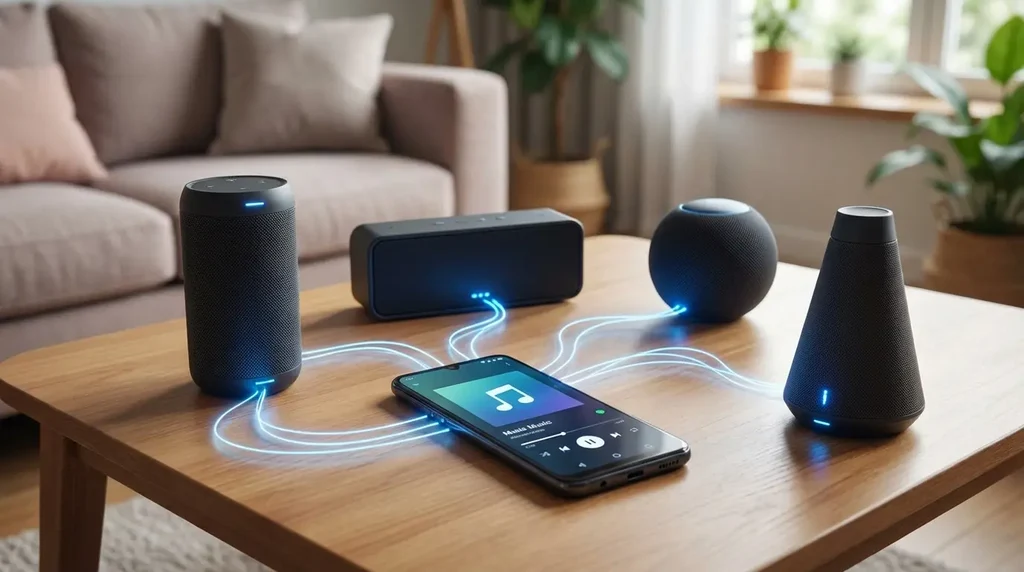


Bluetooth has become an essential part of everyday technology, allowing smartphones, tablets, laptops, wireless headphones, smartwatches, speakers, keyboards, and other accessories to communicate without cables. Whether someone is attending an online meeting, listening to music, transferring small amounts of data, or connecting a wearable device, a reliable Bluetooth connection helps make daily tasks easier. However, wireless connectivity does not always work as expected. Devices may fail to pair, disconnect unexpectedly, produce distorted audio, or remain visible without successfully connecting. These problems can be frustrating, especially when a device is needed for work, study, entertainment, or communication.
Understanding the causes of these issues is the first step toward resolving them. Bluetooth problems can result from outdated software, low battery levels, wireless interference, incorrect pairing settings, incompatible devices, or temporary system errors. Modern devices support increasingly sophisticated wireless features, but these improvements do not eliminate every connectivity challenge. Readers exploring practical technology guidance through itsapkek org can benefit from learning simple troubleshooting methods that address common problems without requiring technical expertise. By following a systematic approach, users can often restore stable connections, reduce interruptions, and improve the overall performance of their wireless accessories.
Understanding Common Bluetooth Connection Problems
Bluetooth connectivity issues can appear in several different ways, and identifying the exact symptom makes troubleshooting more effective. A smartphone might recognize wireless earbuds but fail to connect, while a laptop might pair successfully with a speaker but produce no sound. In other situations, a smartwatch may repeatedly disconnect from its companion phone, or a keyboard may respond slowly when typing. Although these symptoms seem similar, their underlying causes can differ considerably. For example, an audio problem may involve the selected sound output rather than the Bluetooth connection itself, whereas repeated disconnections may indicate interference, weak signal conditions, or a software issue.
Another important distinction is between pairing and maintaining a connection. Pairing establishes a relationship between two devices, while an active connection allows them to exchange information. A device can therefore appear in the available-device list without completing pairing, or it can pair successfully but struggle to maintain a reliable connection. Understanding this difference prevents users from repeating the same ineffective steps. The troubleshooting approach discussed in itsapkek org should begin with observing the problem, checking the devices involved, and testing the simplest possible solutions before moving toward more advanced settings.
1. Check the Basic Bluetooth Settings First
Confirm Bluetooth Is Enabled on Both Devices
One of the easiest ways to resolve connectivity problems is to verify that Bluetooth is enabled on both devices. Open the appropriate settings menu and check the connection status instead of relying exclusively on the quick-settings icon. Some devices may briefly display an enabled icon while the wireless service is still initializing. Turning Bluetooth off, waiting several seconds, and turning it back on can refresh the connection and resolve temporary communication errors.
Users should also confirm that the accessory is powered on and placed in pairing mode when connecting it for the first time. Many headphones, speakers, and smartwatches require a dedicated button or a specific sequence of actions to become discoverable. Simply switching on an accessory does not always make it available for pairing. Checking the manufacturer’s instructions can help distinguish between normal operating behavior and an actual fault.
Keep Devices Within a Suitable Range
Bluetooth is designed for short-range wireless communication, so distance can affect connection quality. Although some devices support longer ranges than others, walls, furniture, metal objects, and the human body can weaken the signal. Keeping connected devices relatively close together is a practical way to reduce interruptions, especially when streaming audio or using wireless input devices.
For initial testing, place the phone or computer within approximately one to three metres of the accessory, with as few obstacles as possible. If the connection becomes stable at close range, the original problem may involve distance or physical interference. Users should also avoid placing connected devices inside closed metal cabinets or behind thick walls. A stable connection depends not only on the advertised wireless range but also on the environment in which the devices operate.
2. Restart Devices to Clear Temporary Errors
Restarting a smartphone, computer, or Bluetooth accessory can resolve temporary software problems that interfere with wireless communication. Operating systems manage several background services, including Bluetooth discovery, authentication, and device communication. Occasionally, one of these services may become unresponsive after prolonged use, a system update, or repeated connection attempts. Restarting the affected device gives these services an opportunity to initialize again and may restore normal operation without changing personal settings.
The best approach is to restart both devices when possible. Turn off the Bluetooth accessory, restart the phone or computer, and then power the accessory back on. Allow the operating system to finish loading before attempting to connect. For headphones or speakers, ensure that the battery has sufficient charge before repeating the pairing process. This simple method is especially useful when a device previously worked correctly but suddenly stopped connecting.
If restarting does not solve the problem, avoid immediately performing a factory reset. A reset may remove saved preferences, paired-device records, or other configuration information. Begin with reversible steps and move to more disruptive actions only when necessary. Practical guides associated with itsapkek org can help users understand why a step-by-step process is more useful than randomly changing several settings at once.
3. Remove Old Pairings and Connect Again
Bluetooth devices frequently remember previously connected phones, computers, and accessories. These saved records make future connections faster, but they can sometimes become outdated or conflict with a device’s current pairing state. This can happen after changing phones, reinstalling software, resetting an accessory, or connecting the same headphones to several devices. Removing the old pairing and establishing a fresh connection can eliminate these inconsistencies.

On a smartphone or computer, open the Bluetooth settings, select the problematic accessory, and choose the option to forget, remove, or unpair it. Next, place the accessory into pairing mode and search for it again. Select the correct device name and complete any confirmation steps displayed on the screen. If a pairing code appears, verify that the same code is displayed on both devices before accepting it.
Users should remember that some accessories support multipoint connectivity, allowing them to connect to more than one device simultaneously. Others may automatically reconnect to the last device they used. If headphones remain connected to a nearby laptop, for example, they may not immediately connect to a smartphone. Disconnecting them from the unused device or temporarily disabling Bluetooth on that device can help determine whether competing connections are responsible.
4. Identify Wireless Interference and Environmental Issues
Bluetooth operates in the 2.4 GHz radio-frequency band, which is also used by many Wi-Fi networks and other wireless technologies. As a result, a crowded wireless environment can sometimes contribute to reduced performance. Problems may be more noticeable in busy offices, apartment buildings, classrooms, shopping centres, and other places where numerous wireless devices operate simultaneously. Physical obstructions and poorly positioned equipment can make the situation worse.
To investigate interference, move away from crowded wireless equipment and test the connection in another location. Keep the phone or computer away from large metal objects and avoid placing it directly beside a wireless router when troubleshooting persistent audio interruptions. If the connection improves in a different environment, interference or signal obstruction may be contributing to the issue. Changing the Wi-Fi band or router placement may also help in certain situations, particularly when Bluetooth problems occur near heavily used wireless networking equipment.
| Observed problem | Possible cause | Recommended action |
|---|---|---|
| Device does not appear | Pairing mode is inactive | Enable discovery or pairing mode |
| Pairing repeatedly fails | Old saved connection | Forget the device and pair again |
| Audio cuts out | Interference or distance | Move devices closer and reduce obstructions |
| Accessory disconnects frequently | Low battery or software error | Charge the accessory and restart both devices |
| Connected but no sound | Incorrect audio output | Select the correct playback device |
| Keyboard responds slowly | Interference or low battery | Replace or recharge the battery and test nearby |
5. Keep Operating Systems and Device Firmware Updated
Software updates can improve Bluetooth compatibility, fix connection bugs, and address performance problems affecting particular devices. Smartphone manufacturers, computer operating-system developers, and accessory makers regularly release updates that may improve communication between hardware components. When Bluetooth stops working after a major software change, checking for a newer update is particularly worthwhile because a subsequent release may address the original issue.
On Android devices, users can check the system update section and the manufacturer’s supported update tools. On iPhones, the general software update settings provide access to available iOS releases. Windows users can check Windows Update and the manufacturer’s support software for relevant driver updates. macOS users should review available system updates. For accessories, firmware updates may be delivered through a companion application or a manufacturer’s designated update process.
Before installing updates, make sure the device has sufficient battery power and a reliable internet connection. Follow the manufacturer’s instructions and avoid interrupting firmware installation. Not every update contains Bluetooth improvements, and an update should not be assumed to solve every problem. Nevertheless, maintaining supported software versions reduces the likelihood of known compatibility issues and helps devices communicate more consistently.
6. Resolve Bluetooth Audio and Headphone Problems
Audio problems deserve separate attention because a successful Bluetooth connection does not guarantee that sound will be routed correctly. A phone may display connected headphones while continuing to play audio through its built-in speaker. Similarly, a laptop may connect to a wireless speaker but select a different playback device. Before resetting the headphones, open the sound settings and confirm that the intended output is selected.
Users should also check the media volume, application volume, microphone permissions, and relevant audio settings. Some headphones provide separate modes for media playback and hands-free calls. Switching between these modes can change sound quality, especially during video conferences or voice calls. If music sounds clear but calls sound poor, the issue may involve the communication audio profile, microphone configuration, or the application rather than the basic Bluetooth connection.
When audio repeatedly stutters, close unnecessary applications that may be using the microphone or competing for the accessory. Test another music player or calling application to see whether the issue affects all software or only one program. If possible, connect the headphones to another compatible device. A successful test elsewhere suggests that the original phone or computer settings may need attention, while similar problems across multiple devices could indicate an accessory fault.
7. Improve Bluetooth Performance on Android and Windows
Android Troubleshooting
Android devices provide several settings that can help identify Bluetooth problems. Users should first confirm that the accessory is paired correctly, has sufficient battery power, and is not being used by another device. If the connection remains unreliable, restarting the phone and removing the saved pairing are sensible next steps. It is also worth checking whether the problem affects every accessory or only one particular device, as this distinction helps narrow down the cause.
Some Android phones include options for resetting Wi-Fi, mobile network, and Bluetooth settings together. This can help when normal troubleshooting fails, but the exact behavior varies by manufacturer and Android version. A network-settings reset may remove saved Wi-Fi networks, Bluetooth pairings, or other connection preferences. Review the confirmation message before proceeding, and use this option only after simpler steps have been exhausted.
Windows Troubleshooting
On Windows computers, Bluetooth issues may result from missing drivers, power-management settings, or problems with the Bluetooth adapter. Begin by checking that Bluetooth is enabled and that the accessory appears in the system’s device settings. If pairing fails, remove the accessory and add it again. Running the built-in Bluetooth troubleshooter, when available in the installed Windows version, may also identify common configuration problems.
If the issue continues, inspect Device Manager for warnings associated with the Bluetooth adapter. Install compatible drivers through Windows Update or the computer manufacturer’s official support application. Avoid downloading unidentified driver packages from unfamiliar sources. Some computers allow power-management settings that affect the wireless adapter, so checking these options may be useful when disconnections happen after sleep or inactivity. Any changes should be made carefully because available settings differ between devices.
8. Manage Battery Levels and Power-Saving Features
Low battery power can cause some Bluetooth accessories to behave unpredictably. Wireless earbuds may disconnect more frequently as their batteries approach depletion, while keyboards and mice may respond slowly when their batteries are weak. A device can sometimes remain switched on even when it no longer has enough power to maintain consistent wireless operation. Charging the accessory fully before testing helps eliminate this possibility.
Power-saving features can also affect connectivity. Smartphones and computers may restrict background activity or reduce power consumption when the battery is low. Although these features are useful for extending battery life, their effects on connected accessories can vary by operating system and application. If a smartwatch or wearable repeatedly disconnects when its companion application runs in the background, review the relevant battery-optimization settings and the manufacturer’s recommendations.
Avoid disabling every battery-saving feature without a clear reason. Instead, test the connection under normal power conditions first, then investigate specific settings if the problem continues. A controlled approach helps preserve battery life while making it easier to determine whether power management contributes to the instability.
9. Use a Simple Troubleshooting Routine
When several possible causes exist, changing one setting at a time is more effective than attempting numerous fixes simultaneously. Begin with the least disruptive actions, such as checking Bluetooth status, charging the accessory, reducing the distance between devices, and restarting both products. If those steps fail, remove the saved pairing, reconnect the devices, and inspect available software updates. More advanced actions, including resetting network settings or reinstalling drivers, should come later.
A useful troubleshooting routine should also include a repeatable test. For example, someone experiencing interruptions with wireless earbuds can charge them, place the phone nearby, disconnect other devices, and play the same audio track for several minutes. If the connection remains stable, the user can gradually return to the original environment and determine which condition causes the issue to reappear. This method provides more useful evidence than repeatedly reconnecting without recording the result.
Readers using itsapkek org as a source of technology learning can apply the same systematic thinking to other digital problems. Observing symptoms, testing likely causes, and documenting successful changes can make troubleshooting faster and more reliable. The objective is not merely to restore a connection temporarily but to understand the factors that caused the interruption in the first place.
10. Recognize When Professional Support Is Necessary
Not every Bluetooth problem can be fixed through settings. A damaged antenna, defective accessory, failing battery, malfunctioning adapter, or internal hardware fault may require professional inspection. If an accessory cannot connect to any compatible device despite repeated attempts, the problem may be associated with the accessory itself. Similarly, if a computer’s Bluetooth adapter consistently disappears from system settings, hardware or driver problems may need further investigation.
Testing the accessory with another compatible phone or computer is one of the most useful ways to isolate the source of the fault. If it works normally elsewhere, concentrate on the original device’s settings, drivers, or software. If it fails across multiple devices, consult the accessory manufacturer’s troubleshooting instructions or support service. Check warranty coverage before attempting physical repairs, opening the device, or replacing internal components.
Be cautious of applications that promise to repair every Bluetooth problem automatically. Reliable troubleshooting should rely on built-in operating-system tools, supported manufacturer software, and clear diagnostic steps. Unnecessary utility applications can introduce additional problems, particularly when they request broad permissions or install unknown components.
Conclusion
Stable Bluetooth connectivity depends on several factors, including correct pairing, adequate battery power, compatible software, suitable device positioning, and a relatively interference-free environment. Most common issues can be investigated through straightforward steps, such as toggling Bluetooth, restarting devices, forgetting old pairings, updating supported software, and checking audio or power settings. More advanced troubleshooting may be necessary when problems persist, but users should approach these measures carefully to avoid losing useful settings or creating new configuration issues.