

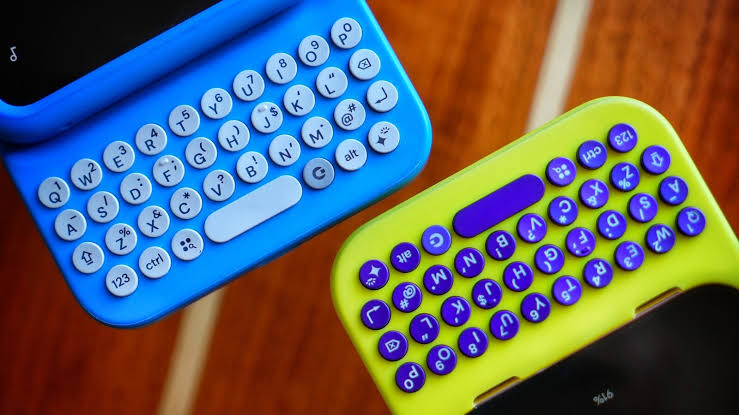


Smartphones have become essential tools for communication, learning, entertainment, and work. People use their Android devices to reply to messages, write emails, prepare documents, search for information, and manage daily responsibilities. Although touchscreen keyboards make these activities convenient, repeatedly typing the same words, correcting mistakes, and switching between applications can consume valuable time. Learning a few practical keyboard shortcuts and text entry techniques can make everyday smartphone use faster, smoother, and more comfortable.
Android offers several useful typing features, including text selection shortcuts, clipboard history, voice typing, predictive suggestions, and personalized text replacements. Some functions are available through the operating system, while others depend on the keyboard application installed on the device. Understanding these differences helps users choose the right techniques for their needs. Readers exploring smartphone productivity through itsapkek org can also benefit from learning how these tools work together to simplify common tasks without requiring expensive applications or complicated settings.
The purpose of Android keyboard shortcuts is not simply to reduce the number of taps needed to enter text. Effective shortcuts also help users maintain their writing flow, minimize repetitive work, and avoid unnecessary navigation between screens. Whether someone is a student taking notes, a professional responding to emails, or a casual user chatting with friends, the right keyboard habits can improve the overall mobile experience.
Understanding Android Keyboard Shortcuts
Android keyboard shortcuts are actions that help users enter, edit, select, or manage text more efficiently. Unlike traditional computer keyboards, most Android smartphones use touchscreen keyboards, where shortcuts often involve long-press gestures, toolbar options, dedicated keyboard buttons, or personalized text replacements. Some Android devices also support physical keyboards, allowing users to perform familiar combinations such as copying, pasting, and selecting text with modifier keys.
The available features depend on the Android version, keyboard application, device manufacturer, and application being used. For example, Gboard provides a collection of typing tools, including clipboard management, voice input, and text editing controls. Other keyboard applications may offer different layouts or customization options. Understanding the capabilities of the installed keyboard is the first step toward creating a faster typing routine.
Another important consideration is that a shortcut does not always mean a combination of keys. On a touchscreen, pressing and holding a word to select it can be just as useful as a traditional keyboard command. Swiping across letters to form words, using punctuation shortcuts, and accepting accurate predictive suggestions can also reduce typing effort.
Essential Android Text Editing Shortcuts
Text editing is one of the most common activities performed on smartphones. Users frequently correct spelling mistakes, rearrange sentences, copy information, and remove unnecessary words. Learning the basic editing controls makes these activities easier, particularly when writing longer messages or working with documents.
Copy, Cut, and Paste Text Efficiently
Copying and pasting are among the most practical text editing techniques. To copy text, press and hold a word or selected passage, adjust the selection handles if necessary, and choose the Copy option. To move text from one place to another, use Cut when the application supports it. You can then place the cursor in the destination field, press and hold the text area, and select Paste.
These actions are especially useful when transferring addresses, reference numbers, meeting details, or paragraphs between applications. For instance, a student can copy a definition from a study document and paste it into personal notes rather than typing the entire passage again. Similarly, an employee can reuse a prepared sentence in several messages without repeatedly entering every word.
Clipboard history can make the process even more efficient. Some keyboard applications allow users to access recently copied items from a clipboard panel, although availability and retention periods vary. Sensitive information should be handled carefully because copied text may remain available temporarily, and pinned clipboard items can persist until removed.
Select Text and Move the Cursor Precisely
Correcting text on a touchscreen can sometimes be frustrating because the cursor may not appear exactly where the user intends. Pressing and holding a word generally reveals selection controls, allowing users to highlight individual words or larger passages. Tapping within the text field and adjusting the cursor helps position it before inserting or removing characters.
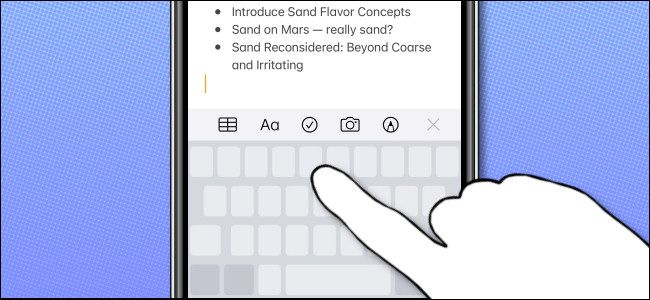
Some keyboards also provide cursor movement through a spacebar gesture or a dedicated editing mode. With supported versions of Gboard, sliding a finger across the spacebar can move the cursor through existing text. This can be more precise than repeatedly tapping a small area between letters, particularly when correcting a long sentence.
For example, imagine writing a work email and noticing a spelling error near the beginning of a paragraph. Instead of deleting the entire sentence, move the cursor to the incorrect word, correct it, and continue writing. These small techniques are useful for anyone who frequently edits longer messages on a mobile device.
Useful Android Keyboard Shortcuts at a Glance
Different shortcuts and gestures serve different purposes. The following table summarizes common actions and explains when they are useful. Availability may vary according to the keyboard, application, and whether a physical keyboard is connected.
| Action or shortcut | How it works | Main benefit |
|---|---|---|
| Copy text | Select text and tap Copy | Reuses existing information |
| Cut text | Select text and tap Cut | Moves text between locations |
| Paste text | Press and hold a text field and tap Paste | Reduces repeated typing |
| Undo or redo | Use the available editing control or shortcut | Helps recover from editing mistakes |
| Cursor movement | Drag the cursor or use a supported spacebar gesture | Improves editing precision |
| Voice typing | Tap the microphone icon | Converts speech into text |
| Text replacement | Enter a saved abbreviation | Expands frequently used phrases |
| Swipe typing | Slide across letters to form a word | Can speed up continuous typing |
These techniques work best when users select the method that matches the task. Copying is convenient for existing information, text replacement is better for frequently repeated phrases, and voice typing may be helpful when entering long passages. Learning a small number of reliable techniques is generally more useful than trying to memorize every available keyboard feature.
Using Gboard Features for Faster Text Entry
Gboard is a widely used Android keyboard that combines conventional typing with several productivity features. Depending on the device and application version, users may find predictive text, autocorrection, multilingual typing, emoji suggestions, voice typing, and clipboard tools. These functions can reduce the amount of manual input needed for routine communication.
Take Advantage of Predictive Text
Predictive text suggests words or phrases as someone types. When the keyboard recognizes a familiar word pattern, it may display a likely continuation above the keys. Selecting an accurate suggestion can save several keystrokes and make writing feel more fluid. Autocorrection can also identify common spelling mistakes and replace them with the intended word.
However, these tools are not always correct. Names, technical terms, regional expressions, and words from multiple languages may be changed unexpectedly. Before sending a professional message, review the entire sentence to ensure that the keyboard has not introduced an incorrect replacement. This is particularly important when entering financial details, dates, addresses, or specialized terminology.
Users can improve their experience by learning how suggestions behave and correcting recurring errors when the keyboard permits it. Over time, the keyboard may adapt to individual typing patterns, although the degree of personalization depends on its settings and implementation.
Use Swipe Typing for Continuous Writing
Swipe typing allows users to form words by sliding a finger across the letters rather than tapping each key separately. The keyboard predicts the intended word from the movement across the layout. This technique can be especially convenient when typing one-handed or entering ordinary sentences in messaging applications.
The feature requires some practice because similar words can produce incorrect predictions. Begin with short, familiar sentences and gradually use the method for longer messages. If a suggested word is wrong, select the correct alternative or return to conventional tapping.
Swipe typing is not necessarily faster for everyone. Some users prefer tapping because it offers greater control over unusual names, numbers, and technical vocabulary. Experimenting with both methods helps determine which approach feels most comfortable for different writing situations.
Create Text Replacements for Repeated Phrases
Text replacement is one of the most valuable ways to reduce repetitive typing. Instead of entering a complete phrase every time, users can create a short abbreviation that expands into the intended text. Depending on the keyboard and device, this feature may be available through a personal dictionary, text shortcuts, or a dedicated text replacement setting.
For example, a person who frequently sends professional emails might use a short abbreviation for a standard greeting. Another user could save a commonly used meeting confirmation or a brief customer service response. The goal is to turn repeated typing into a simple, predictable action while preserving the natural tone of the message.
A useful text replacement should be short enough to remember but uncommon enough that it does not accidentally appear during ordinary writing. Test each abbreviation after creating it to confirm that it expands correctly. If a shortcut repeatedly interrupts normal typing, change it to a less common combination.
Users researching practical smartphone techniques through itsapkek org can apply this approach to everyday tasks, including customer communication, study notes, appointment confirmations, and routine workplace messages. It is particularly effective for people who type the same information several times each day.
How to Set Up Text Shortcuts on Android
The exact steps depend on the installed keyboard and Android version, but the general process is straightforward. On many devices using Gboard, users can open the keyboard settings, find the dictionary or personal dictionary section, choose a language, and add a word or phrase with an optional shortcut. Other keyboards may provide a dedicated text replacement menu.
Before creating shortcuts, identify the phrases that appear most frequently in your daily typing. There is little benefit in creating dozens of shortcuts for sentences used only once. Start with two or three useful phrases, test them in a messaging application, and add more only when they provide a clear advantage.
The following examples illustrate possible uses:
-
A short abbreviation for a standard professional greeting.
-
A saved phrase for confirming an appointment.
-
A reusable expression for acknowledging a received message.
-
A common work-related phrase that would otherwise require repeated typing.
Avoid placing passwords, payment information, confidential customer details, or other sensitive data into text expansion shortcuts. These features are intended to improve convenience, not to serve as secure storage.
Voice Typing and Dictation for Longer Messages
Voice typing can be a practical alternative when typing with both thumbs is uncomfortable or when a message contains several paragraphs. Most supported Android keyboards provide a microphone button that starts speech recognition. After granting any required microphone permissions, users can speak naturally while the keyboard converts their words into text.
This method is particularly useful for drafting reminders, creating rough notes, preparing message outlines, and recording ideas while away from a desk. Someone who wants to capture an idea before forgetting it may find speaking a sentence considerably easier than navigating the touchscreen. Voice input can also support users who have difficulty typing on small displays.
Nevertheless, dictation has limitations. Background noise, unclear pronunciation, unfamiliar names, and technical vocabulary may affect recognition accuracy. Punctuation support also varies, and users may need to speak punctuation commands or edit the result manually. Always review dictated text before sending it, especially when the message contains important instructions or professional information.
Privacy deserves attention as well. Voice input may involve processing by the keyboard provider or another service, depending on the device and settings. Users should review relevant privacy options and avoid dictating confidential information in environments where others can hear it.
Personalize Your Keyboard for Better Productivity
Keyboard customization can make typing faster by reducing unnecessary movement and improving access to frequently used features. Settings may include keyboard height, key layout, number rows, long-press behavior, autocorrection, suggestion preferences, and supported languages. Adjusting these options can help the keyboard match individual typing habits.
For example, someone who frequently enters prices or measurements may benefit from a visible number row if the keyboard supports it. A multilingual user may prefer adding multiple languages to avoid switching applications or repeatedly changing settings. Another person may find that a slightly taller keyboard improves accuracy, while someone with a smaller display may prefer a more compact layout.
It is worth changing one or two settings at a time rather than modifying everything at once. This makes it easier to identify which adjustments genuinely improve typing speed. If a new layout causes more mistakes, return to the previous configuration and try another option. Comfort and accuracy are just as important as the number of seconds saved.
Common Mistakes That Reduce Typing Speed
Many users assume that typing faster means tapping the screen as quickly as possible. In practice, excessive speed can create more mistakes, requiring additional corrections and making the overall process slower. A consistent rhythm, accurate word selection, and familiarity with editing controls often produce better results than rushing through every sentence.
Another common mistake is accepting every predictive suggestion without checking the meaning. Autocorrection may change a person’s name, replace an unfamiliar word, or alter the intended tone of a message. Similarly, creating too many text shortcuts can make them difficult to remember and may cause unwanted expansions. Keep shortcuts relevant and review important messages before sending them.
Users should also avoid installing unknown keyboard applications simply because they promise faster typing. A keyboard may process everything entered through it, including personal messages and other sensitive information. Choose reputable software, review requested permissions, and install updates through trusted channels. Smartphone productivity should never come at the expense of basic digital security.
Best Practices for Faster Everyday Text Entry
Developing a consistent typing routine helps turn individual shortcuts into lasting habits. Rather than trying to learn every feature in one session, focus on the techniques that address the most frequent problems. Someone who constantly edits messages should practice cursor control, while a person who repeatedly enters standard replies should prioritize text replacement.
The following practices can help users build an efficient routine:
-
Learn copy, cut, paste, and text selection before exploring advanced features.
-
Create a few meaningful text shortcuts for frequently repeated phrases.
-
Use voice typing for longer drafts when speaking is convenient.
-
Review predictive suggestions and correct mistakes before sending important messages.
-
Keep the keyboard updated and check privacy settings regularly.
These practices are most effective when applied consistently. For example, a student can use clipboard history to organize copied study material, swipe typing to draft ordinary notes, and text replacement for repeated headings. A professional may rely more heavily on cursor movement, saved phrases, and voice dictation. The best combination depends on how the device is used throughout the day.
How Android Keyboard Shortcuts Support Different Users
Students can use keyboard shortcuts to prepare assignments, write notes, and communicate with classmates more efficiently. Copying selected text into study notes can reduce unnecessary retyping, while voice dictation can help capture initial ideas. However, copied material should still be reviewed and appropriately attributed when used in academic work.
Professionals can benefit from saved greetings, reusable responses, and precise editing tools. People who regularly answer customer questions may find text replacement especially helpful because it reduces repetitive effort while keeping responses consistent. Reviewing each message remains important to ensure that a saved phrase fits the situation and does not sound impersonal.
Everyday smartphone users can also gain practical advantages. Keyboard gestures make it easier to correct casual messages, predictive text helps with familiar words, and multilingual settings support conversations across languages. As readers exploring itsapkek org learn more about mobile productivity, the most important lesson is that small improvements in routine tasks can make smartphone use more comfortable without requiring complicated technical knowledge.
Conclusion
Android keyboard shortcuts offer a practical way to improve text entry, reduce repetitive actions, and make everyday smartphone tasks more efficient. Basic editing gestures, clipboard tools, predictive text, swipe typing, voice dictation, and personalized text replacements each solve a different problem. Learning how these features work allows users to choose the right technique instead of relying entirely on manual typing. The best approach is to begin with simple shortcuts, customize the keyboard according to personal needs, and practice the features that provide the greatest benefit. Users should also check the accuracy of autocorrection, protect sensitive information, and review important messages before sending them. Faster typing is valuable, but clear communication and reliable results matter just as much.