



Mobile data has become an essential part of everyday smartphone use. People download applications, watch videos, communicate through messaging platforms, browse websites, synchronize cloud accounts, and install updates without always realizing how quickly those activities can consume a monthly data allowance. For users exploring apkek org downloads or other Android application sources, understanding data consumption is especially useful because downloading an application is only one part of its total network activity. Once an app is installed, it may continue communicating with online services, checking for updates, synchronizing information, loading advertisements, or downloading additional content.
Android has introduced increasingly useful controls for monitoring and limiting mobile data. Modern Android devices can show which applications consume the most data, restrict background activity, activate Data Saver, and provide warnings when usage reaches a chosen threshold. These controls can help users make informed decisions instead of waiting until their data allowance is almost exhausted. The exact menu names can vary between manufacturers, Android versions, and customized interfaces, but the underlying principles remain similar.
When considering an app from apkek org, users should therefore look beyond the initial download size. A relatively small application can generate significant network traffic after installation, while a large application may use very little mobile data once its required resources have been downloaded. The safest approach is to understand what the application does, monitor its behavior after installation, and use Android’s built-in controls to prevent unexpected consumption.
Understand Where Android Data Usage Comes From
Many users associate data usage primarily with downloading applications, but Android phones consume mobile data through several different activities. Application downloads, automatic updates, cloud backups, photo synchronization, social media feeds, video streaming, online gaming, advertisements, and background synchronization can all contribute to overall usage. Some services may operate even when the user is not actively looking at the screen.
An important distinction is between foreground and background data. Foreground data is generated while actively using an application, such as watching a video or browsing an online store. Background data happens when an application communicates with its servers while operating in the background. For example, an email application may check for new messages, a weather application may refresh information, or a cloud service may synchronize files. These activities can appear insignificant individually but become substantial when repeated throughout the day.
Users researching apkek org applications should pay attention to this distinction after installing an app. Checking the application’s data usage after several days can reveal whether it behaves as expected. If an application that is rarely opened is consuming an unusually large amount of mobile data, that is a reason to investigate its background permissions, synchronization settings, advertisements, or other network activity.
Check an App’s Data Consumption Before It Becomes a Problem
Android provides built-in data monitoring features that make it possible to identify applications responsible for mobile data consumption. Depending on the phone manufacturer, users may find these controls under Network & Internet, Connections, Mobile Network, SIM, or a similarly named settings area. The interface may differ, but users can generally view a usage period and see which applications have consumed the most data.
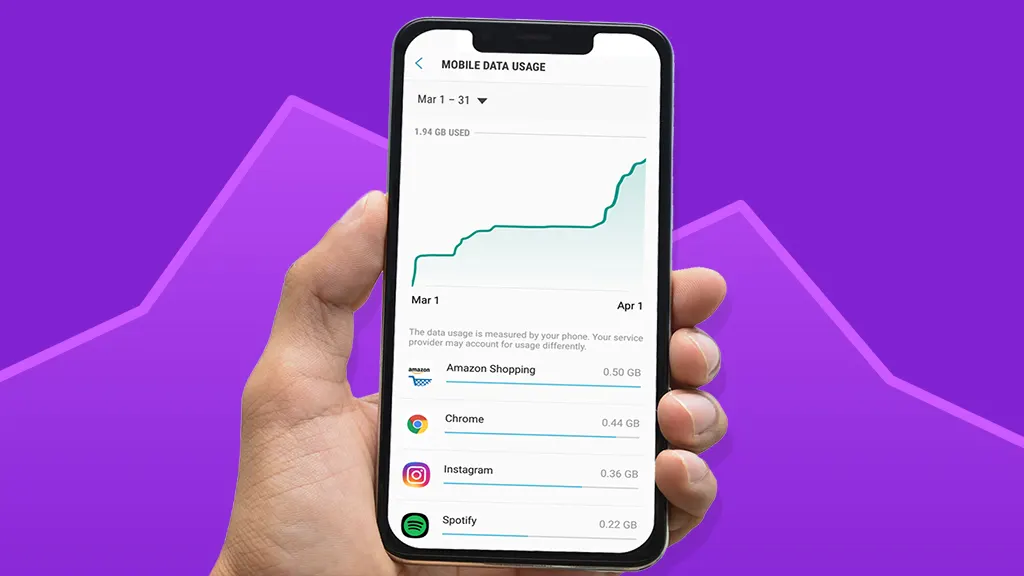
This information is more useful when checked regularly rather than only after receiving a warning. Suppose a user has a monthly mobile allowance of 10 GB and discovers that one newly installed application has consumed 2 GB within a week. That pattern deserves attention. The user can then determine whether the consumption came from normal activity, large downloads, streaming, automatic synchronization, or another function.
A practical monitoring routine for apkek org downloads is to record the application’s initial behavior during the first few days. Use the application normally, check its mobile data consumption, and compare foreground and background usage. This creates a simple baseline. If consumption suddenly increases later, it becomes easier to identify that something has changed, such as an update, new content, or altered settings.
Use Wi-Fi for Large Downloads and Updates
One of the simplest ways to reduce mobile data usage is to reserve large downloads for trusted Wi-Fi connections. Applications containing games, high-resolution media, offline maps, language packages, or additional resources can require considerably more data than their initial installation package suggests. Installing such content over cellular data can quickly reduce a user’s monthly allowance.
Users considering apkek org downloads should pay particular attention to the complete download process rather than judging an application only by its displayed file size. Some applications retrieve additional resources after installation. A game, for example, may download maps, textures, audio, or other files the first time it launches. Connecting to Wi-Fi before opening a newly installed resource-heavy application can prevent an unexpected cellular-data bill.
Automatic updates deserve similar consideration. Updates can improve security, fix bugs, and introduce useful features, but frequent updates can also consume substantial data. Where the device and application settings allow it, users can configure updates to occur through Wi-Fi. This is particularly helpful for people with limited data plans.
Control Background Data Without Breaking Important Features
Background data restrictions can be extremely effective, but they should be used thoughtfully. Some applications need background connectivity to provide notifications, synchronization, or time-sensitive information. Completely restricting an application may cause delayed messages, outdated information, or reduced functionality.
A better approach is to identify applications that do not need continuous network access. Shopping applications, casual games, image editors, document readers, and similar tools may not need to communicate constantly when they are not being used. Restricting their background activity can reduce unnecessary consumption while leaving essential communication services unrestricted.
Android’s Data Saver feature can also help. When enabled, compatible applications generally receive fewer opportunities to use mobile data in the background. Users can normally allow selected applications to continue using unrestricted data when necessary. This creates a balance between saving data and maintaining important services.
Be Careful With Streaming and Automatic Media
Streaming is one of the largest sources of mobile data consumption on modern smartphones. Video quality has a major impact because higher-resolution content requires considerably more data. A user watching several hours of high-resolution video can consume more data than expected, especially when cellular connectivity is used instead of Wi-Fi.
Music and podcast applications can also consume data, although audio generally requires less bandwidth than video. Downloading frequently used playlists, podcasts, or videos while connected to Wi-Fi can significantly reduce cellular usage. Many modern applications provide quality or download settings that allow users to select lower-quality streaming when using mobile networks.
The same principle applies to social media applications. Feeds containing automatically playing videos, high-resolution images, and advertisements can generate continuous data usage. Turning off automatic video playback or selecting a data-saving media quality can make a meaningful difference over a full month.
| Activity | Typical Data Impact | Better Mobile-Data Practice |
|---|---|---|
| App installation | Low to high | Download large apps over Wi-Fi |
| App updates | Moderate to high | Prefer Wi-Fi updates |
| Video streaming | Very high | Lower quality or download on Wi-Fi |
| Music streaming | Low to moderate | Use offline downloads |
| Cloud photo backup | Moderate to very high | Restrict backup to Wi-Fi |
| Online gaming | Variable | Download large resources over Wi-Fi |
| Social media | Moderate to high | Disable automatic video playback |
| Background syncing | Low to moderate | Restrict unnecessary background access |
Manage Automatic Backups and Cloud Synchronization
Cloud services provide valuable protection against data loss, but automatic synchronization can consume significant bandwidth. Photos and videos are particularly important because modern smartphone cameras create large files. If a phone automatically uploads every image and video using cellular data, usage can increase rapidly without the user actively opening a cloud application.
Users should review backup preferences and determine whether mobile data is permitted. A Wi-Fi-only backup strategy is often practical for people with limited cellular allowances. It also provides more predictable usage because large uploads occur when the device is connected to a fixed internet connection.
The same consideration applies to cloud drives and document synchronization. Large files may be uploaded or downloaded in the background when applications synchronize. If a user notices unexpectedly high consumption after installing a new application, checking connected cloud services can help determine whether the application itself is responsible or whether another synchronization process is involved.
Watch for Additional Downloads After Installation
The installation package is not always the end of an application’s network activity. Some applications download configuration files, content packs, language resources, advertisements, databases, or other components after installation. This behavior is common in applications that depend heavily on online content.

Before using an unfamiliar application extensively, it is sensible to open it while connected to Wi-Fi and allow necessary resources to load. Users can then monitor the application over time to see whether it continues downloading large amounts of information. This approach is especially useful when evaluating apkek org downloads because the initial installation size may not represent the application’s complete data requirements.
Keep Android and Security Features Updated
Data management should not come at the expense of device security. Users sometimes disable updates completely to save data, but outdated operating systems and applications can leave devices exposed to known security problems. A better strategy is to schedule important updates for Wi-Fi connections whenever possible.
Google Play Protect and other built-in Android security mechanisms can also help users evaluate applications and detect potentially unwanted or harmful behavior. When obtaining applications outside conventional app distribution channels, additional caution is appropriate. Users should consider the source, permissions requested by the application, developer information, update behavior, and whether the application appears trustworthy.
When evaluating apkek org downloads, users should not focus solely on saving data. Security and privacy are equally important. An application requesting access that is unrelated to its purpose deserves closer examination. For example, a simple calculator generally has little reason to require extensive access to contacts, messages, or unrelated personal information.
Simple Habits That Can Reduce Monthly Data Consumption
A few consistent habits can make Android data usage considerably more predictable. Instead of waiting for Android to issue a monthly warning, users can review consumption weekly. This makes unusual patterns easier to spot and provides enough time to adjust settings before reaching a plan’s limit.
Useful habits include:
- Download large applications and additional content over trusted Wi-Fi.
- Disable unnecessary background data for rarely used applications.
- Reduce video quality and automatic media playback on mobile networks.
- Review cloud backup settings and prefer Wi-Fi for large uploads.
These steps are simple, but their combined effect can be substantial. Users do not necessarily need to disable every online feature. The goal is to prevent unnecessary activity while keeping the applications and services they actually depend on.
Build a More Predictable Android Data Routine
A predictable routine is more effective than constantly checking the data meter after something goes wrong. At the beginning of each billing cycle, users can note their available data allowance and review which applications normally consume the most. Midway through the month, another check can reveal whether usage is progressing as expected.
For users who frequently explore apkek org downloads, keeping an eye on recently installed applications is particularly useful. If data usage changes sharply after installing an application, compare the application’s foreground and background consumption. If necessary, restrict background activity, uninstall applications that are unnecessary, or change their internal download settings.
Conclusion
Managing Android data usage is less about avoiding applications and more about understanding how they communicate with online services. Downloads, updates, streaming, cloud backups, automatic media, and background synchronization can all contribute to monthly consumption. By checking Android’s data statistics, using Wi-Fi for large transfers, limiting unnecessary background activity, and adjusting streaming and backup settings, users can gain much better control over their mobile allowance.